Translate scanned PDFs — without breaking the layout
Translate the document, keep the page.
5 pages free every day · no credit card
Same layout, any language.
Scroll through three real documents and watch them change language.
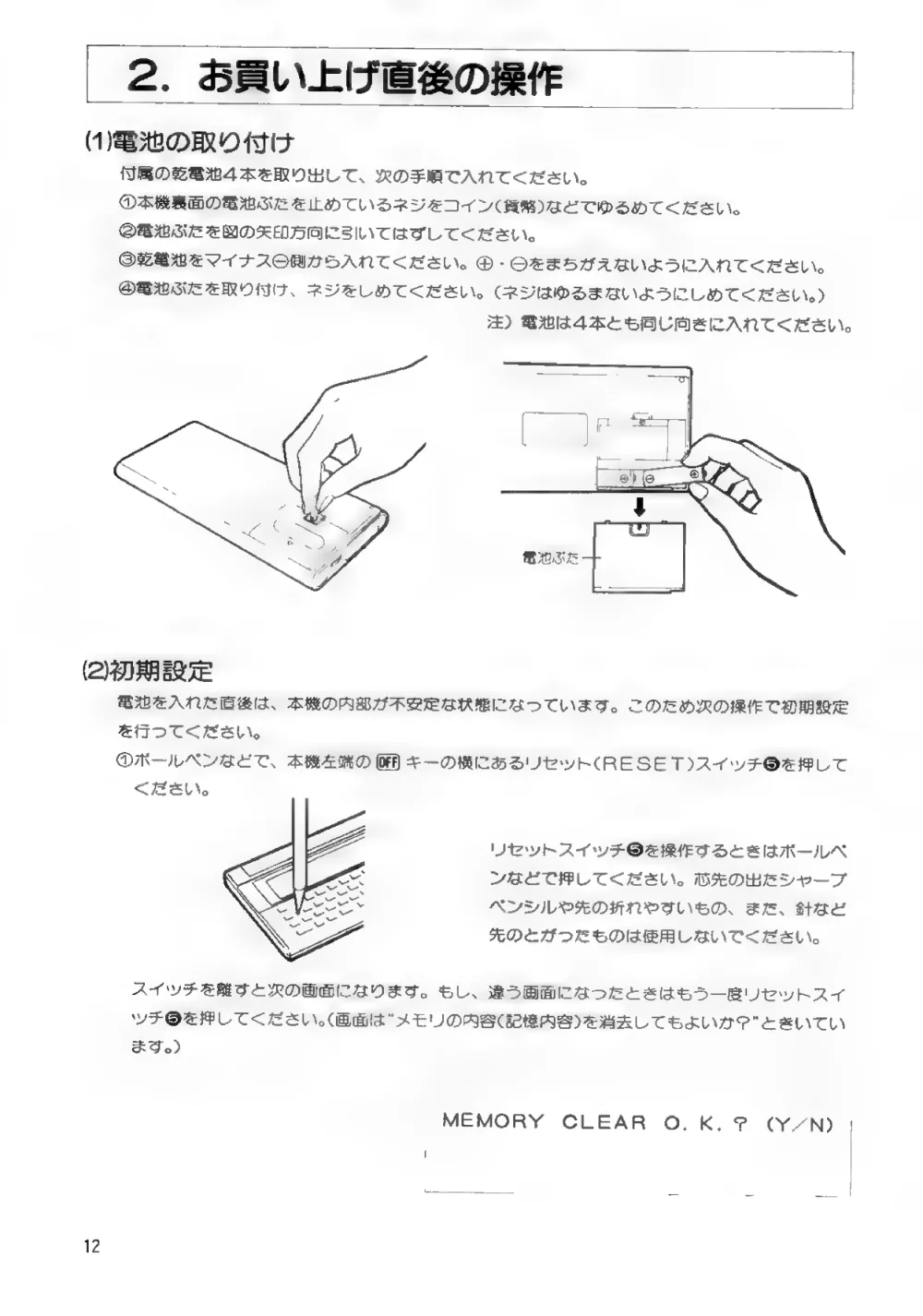
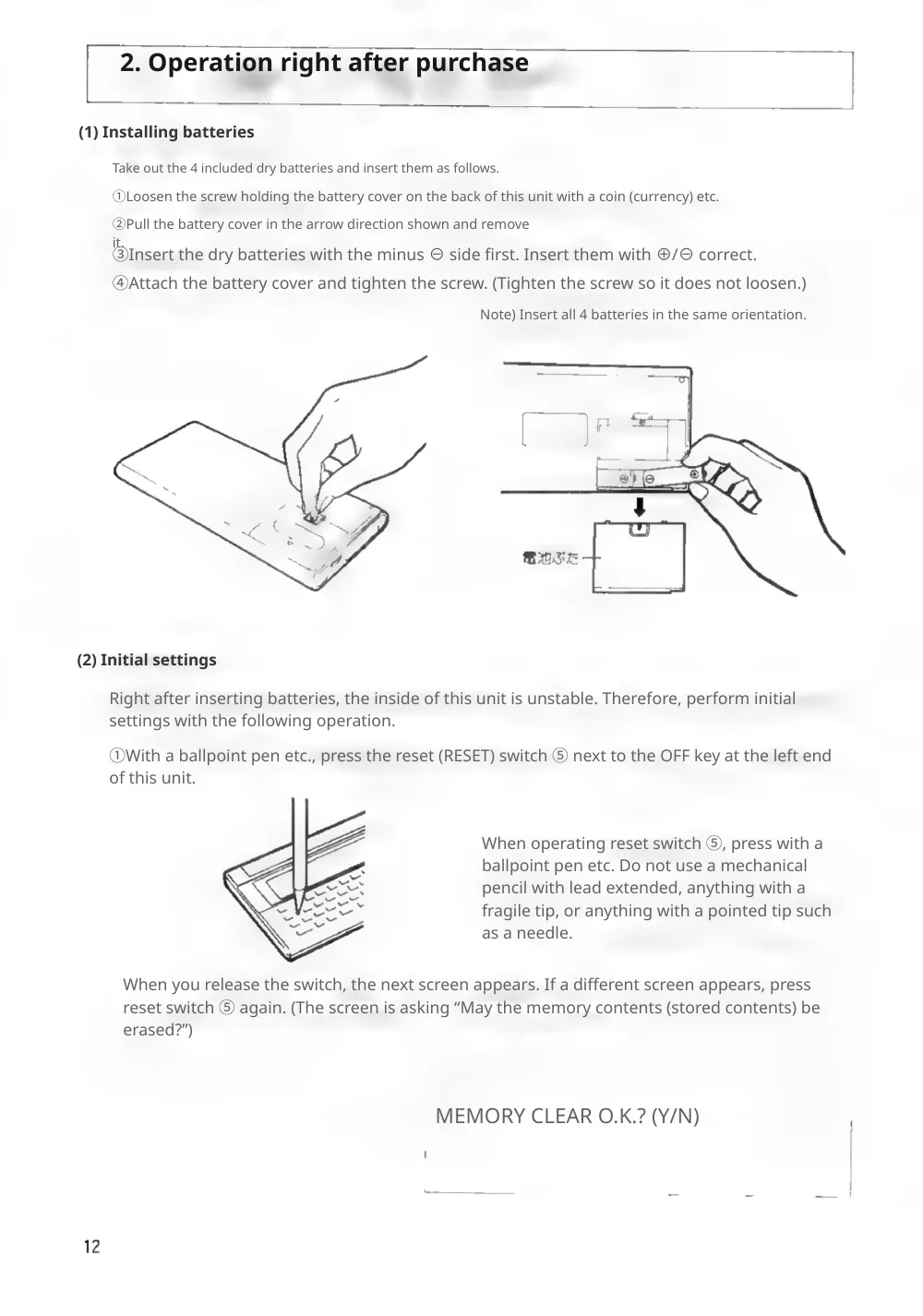
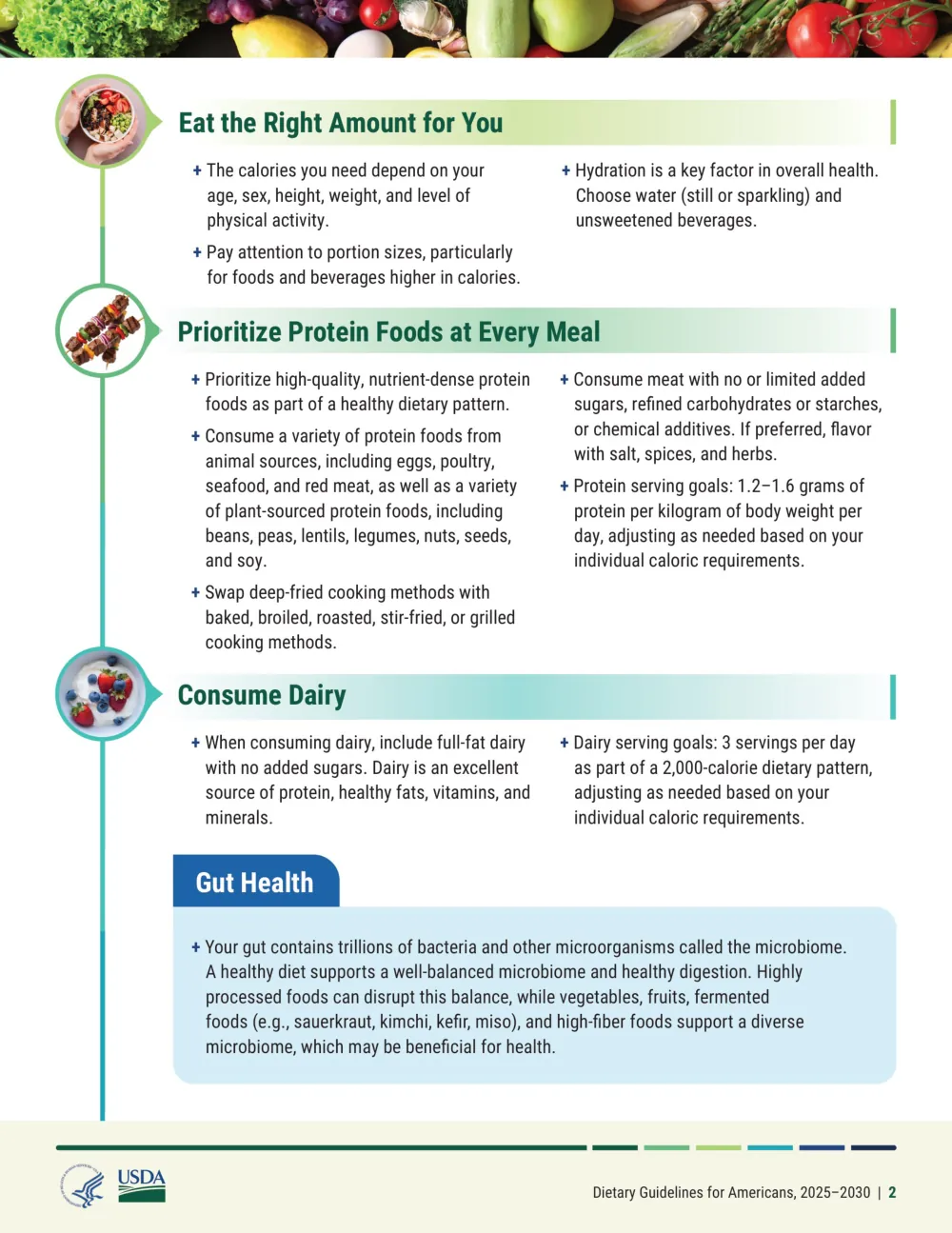
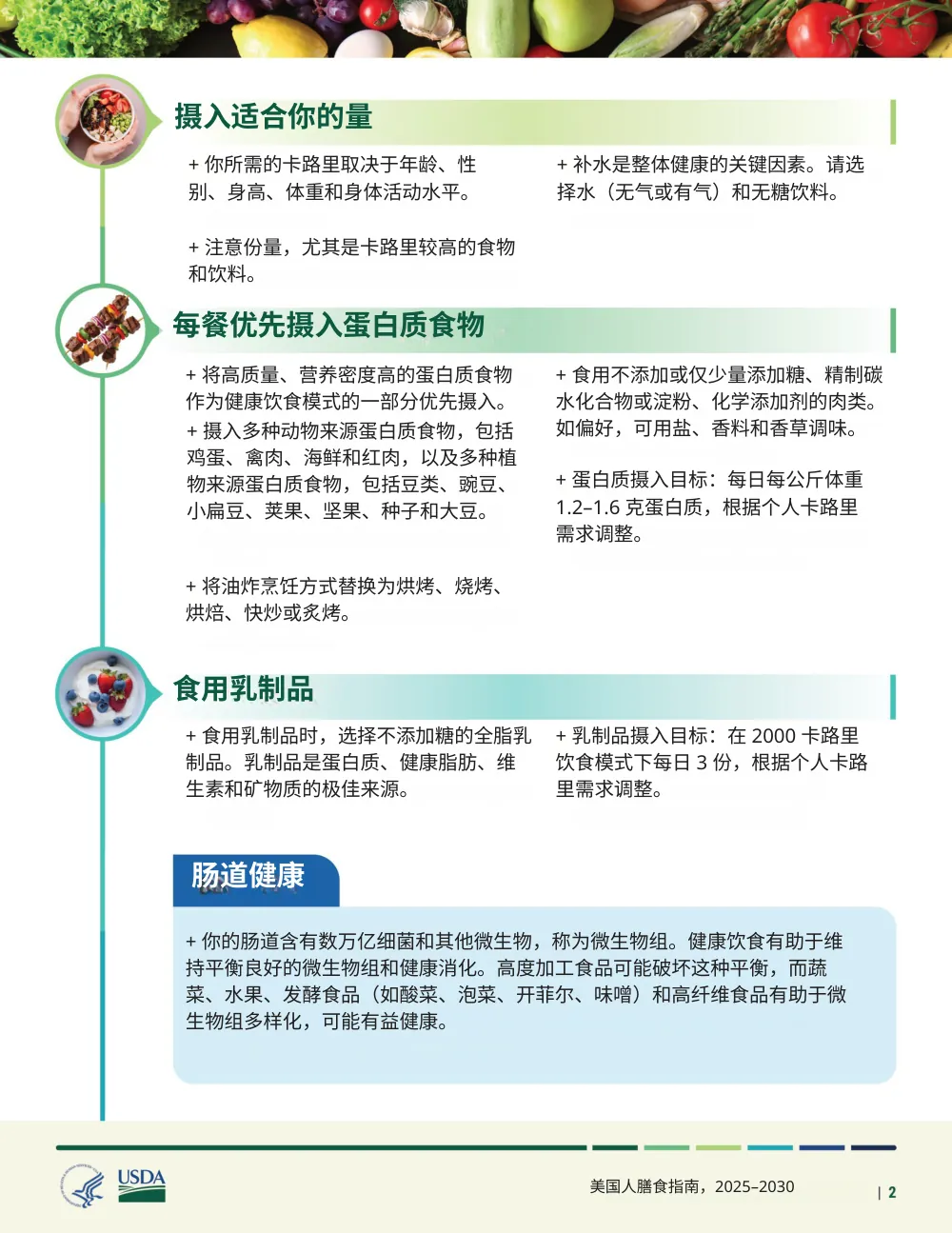
Three steps. No retyping.
No OCR step to run yourself, no copying the formatting back by hand.
Upload a PDF
Any scanned or image PDF, up to 100 MB. A phone scan saved as PDF works too.
Every page is translated in place
The original words come off the page and the translation goes back where they were.
Download the same pages
Check each page against the original, then download — or get both side by side.
What stays exactly where it was
Tables & columns
Rows, cells and multi-column text keep their shape.
Stamps & signatures
Seals, signatures and numbers are left as they are.
Figures & photos
Illustrations and photos aren't redrawn.
Bilingual PDF
Original and translation side by side, page for page.
Built for the pages that are hard to translate
Pick your document for specifics, or just upload — the pipeline is the same.
Birth certificates
Registry fields and seals stay in place.
Academic transcripts
Grade tables keep every row.
Bank statements
Every row and balance where it was.
Medical records
Lab tables and notes, line for line.
Legal documents
Clause numbering and headers preserved.
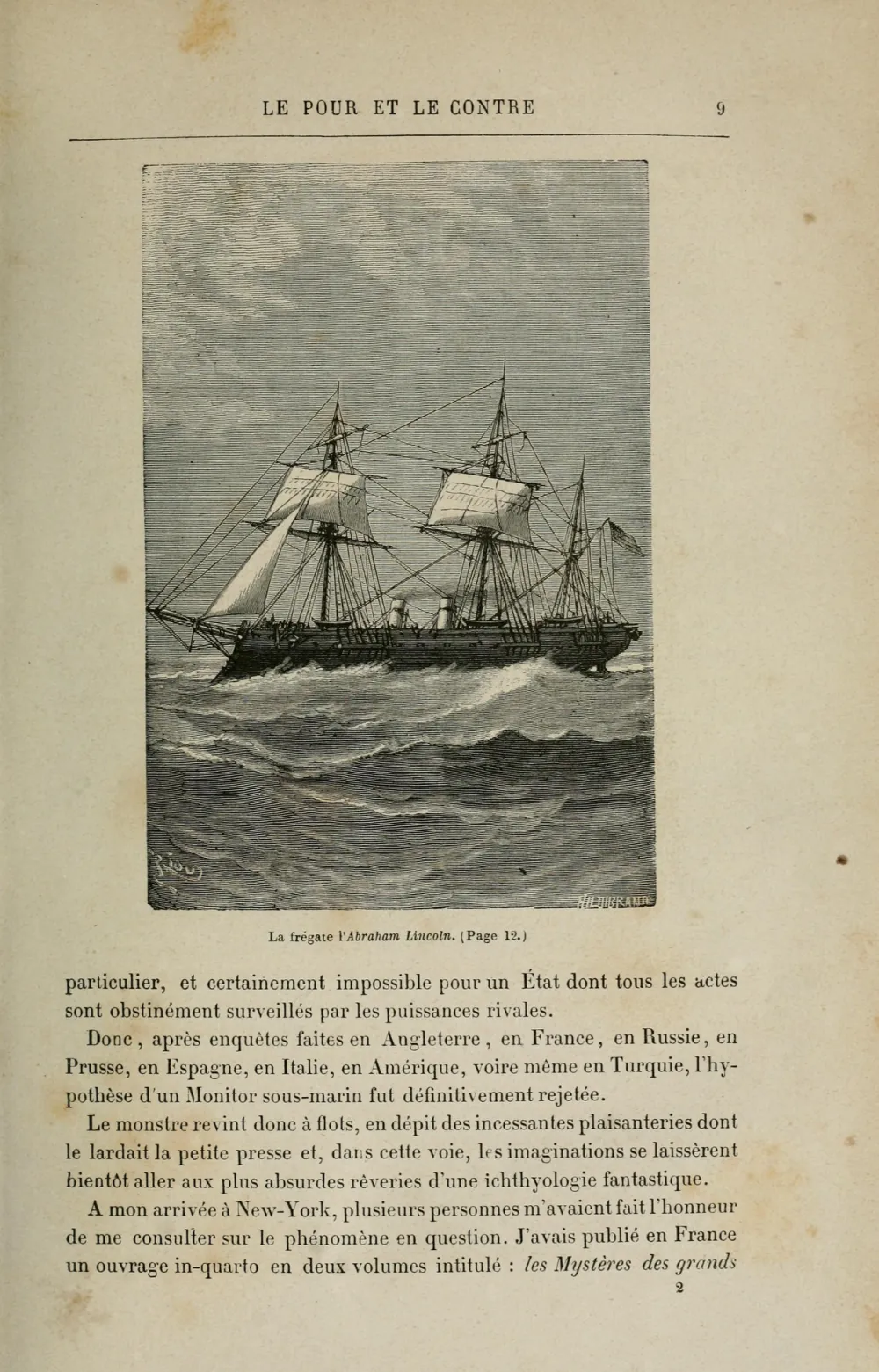
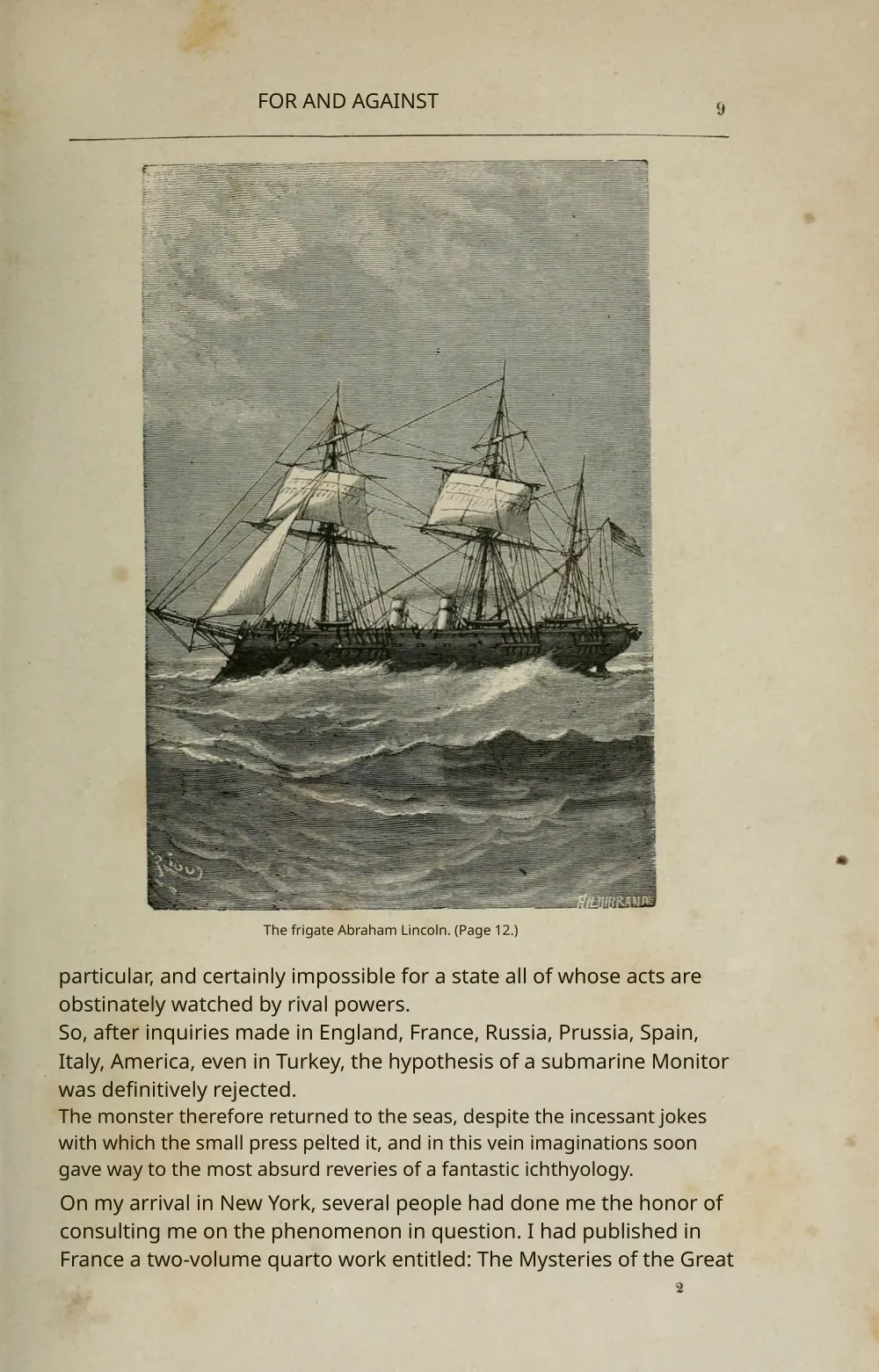
Books & manuscripts
Old prints, engravings and footnotes kept.
Choose your plan
Simple, scan-friendly pricing. Pages are pages — no multiplier for scanned files.
Pay-as-you-go
Translate a few pages. No commitment.
$0.30 a page, from 10 pages — you pay for exactly 10 pages.
- Pages never expire
- Up to 100 MB per file
Lite
Most popularFor individuals with scans to translate every month.
Pro
For high-volume users with scans to translate every week.
- $0.06 / page
- 500 pages every month
- Unused pages roll over (up to 1,500)
- Up to 100 MB per file
Guides on translating scanned documents
The Best PDF Translation Services in 2026 (We Tried Them All)
Eight PDF translators run on the same scans and papers, scored on one table, with every tool's result shown side by side.
Read guideCan ChatGPT Translate a Scanned PDF? What Works and What Doesn't
Vision models genuinely read scans now. The question isn't whether ChatGPT can translate your PDF — it's whether a chat reply is actually what you need back.
Read guideCan Google Translate a Scanned PDF? (What Actually Works)
We dropped a scanned PDF into Google Translate's document tab and it refused outright. Here's why — and the workflow that actually translates a scan.
Read guideTranslating scanned PDFs — frequently asked
Why does my scanned PDF come out as gibberish or random characters when I translate it?
A scanned PDF is just an image of text with no underlying text layer, so a translator that expects selectable text either returns blank pages or garbled, random characters. The fix is OCR (optical character recognition) to read the image first. Reglyph runs OCR on the scan before translating, so you get real translated text instead of gibberish.
Why does Google Translate say 'no text' or fail on my scanned PDF?
Most mainstream translators only read PDFs that already contain a digital text layer. An image-only scan has none, so they report 'text not recognized', hang, or quietly skip pages. Reglyph is built for exactly this case — it recognizes the text in the image, so you don't have to convert or OCR the file yourself first.
How do I translate a scanned PDF without losing the layout, tables, and columns?
Standard tools dump the translated words into a plain wall of text — tables collapse, columns merge, and headings blend into the body. Reglyph erases the original text from the page and re-typesets the translation in the same position, so tables, columns, figures, stamps, and numbers stay exactly where they were.
Do I have to retype or reformat the document after translating it?
With most workflows, yes — people report spending 30–60 minutes per document copying the original formatting back by hand. Reglyph rebuilds the page layout automatically, so the output is ready to use without manual reformatting.
Why doesn't ChatGPT or my PDF tool's AI assistant work on scanned documents?
Many AI assistants can only read the text layer of a PDF and silently do nothing useful on image-only scans — a limitation that often isn't stated until after you've paid. Reglyph treats scanned, image-only PDFs as the primary use case rather than an unsupported edge case.
Can I translate an image-only PDF or a photo of a page without OCR-ing it myself first?
Yes. You don't need to run a separate OCR step or convert the file to editable text beforehand. Upload the scanned PDF and Reglyph handles recognition, translation, and re-layout in one pass. For a paper page, scan it into a PDF with your phone's scanner app (Scan Documents in iPhone Notes or Files, or the scan button in Google Drive); an existing photo needs saving as a PDF first.
Will stamps, signatures, and numbers stay in the right place?
Yes. Reglyph only replaces the text it translates; stamps, seals, signatures, figures, and numeric values keep their original positions and are not altered — which matters for certificates, contracts, and official records.
Can it handle large or multi-page scanned PDFs?
Yes. Many scanned-PDF translators choke on large or multi-page files. Reglyph processes documents page by page, so multi-page scans are translated with the layout preserved on every page. You get 5 free pages every day to try it.